

Did you know that there are two ways to connect your Outlook to an Exchange account? There’s an Online Mode and Cached Exchange Mode. The Online Mode establishes and sustains a direct connection to your Exchange server. Cached Exchange Mode on the other hand creates a local copy of your mailbox data on your computer, that is as an offline data file on your firm’s Exchange server.
This offline data file enables Outlook to access this cached copy which in turn can enable faster response times. Outlook and the Exchange server synchronize the local and server data which improve your Outlook performance if you are working with a slow Internet connection.
Not sure if your Outlook account has Cached Exchange Mode enabled? Here’s the easy steps to check and/or enable it.
Enabling Cached Exchange Mode
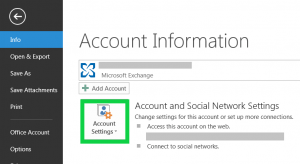
Select File.
Choose Account Settings.
Select Account Settings again.
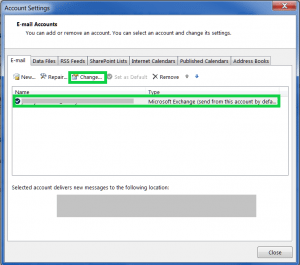
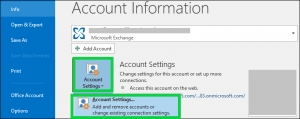 Click the Office 365 account you’d like to check, and the click Change.
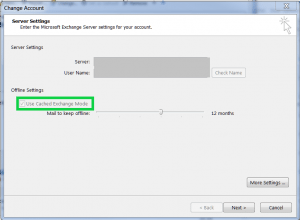
 In Offline Settings, select Use Cached Exchange Mode.
 Exit and restart your Outlook account.
If you decide to turn off your Cached Exchange Mode, follow the same steps but unselect Use Cached Exchange Mode.
The automatic setting is that your email only has 12 months of data available, but you can change those settings in the Offline Settings.
Why isn’t the Cached Exchange Mode option available?
Followed these steps but do not see the Cached Exchange Mode option? There are a few reasons for this.
Your Microsoft Outlook profile does not have an Exchange account. To use Cached Exchange Mode, your outlook profile must have an Exchange account. This means that POP3 and IMAP accounts cannot enable this feature.
The administrator for your Exchange server has disabled this function. Your Exchange administrator can control access to features in Outlook, including the Cached Exchange Mode. If this is the case, contact your administrator for more information.
Microsoft Terminal Services is installed. When Microsoft Terminal Services are installed, Cached Exchange Mode is not available on computers that run Windows Server.